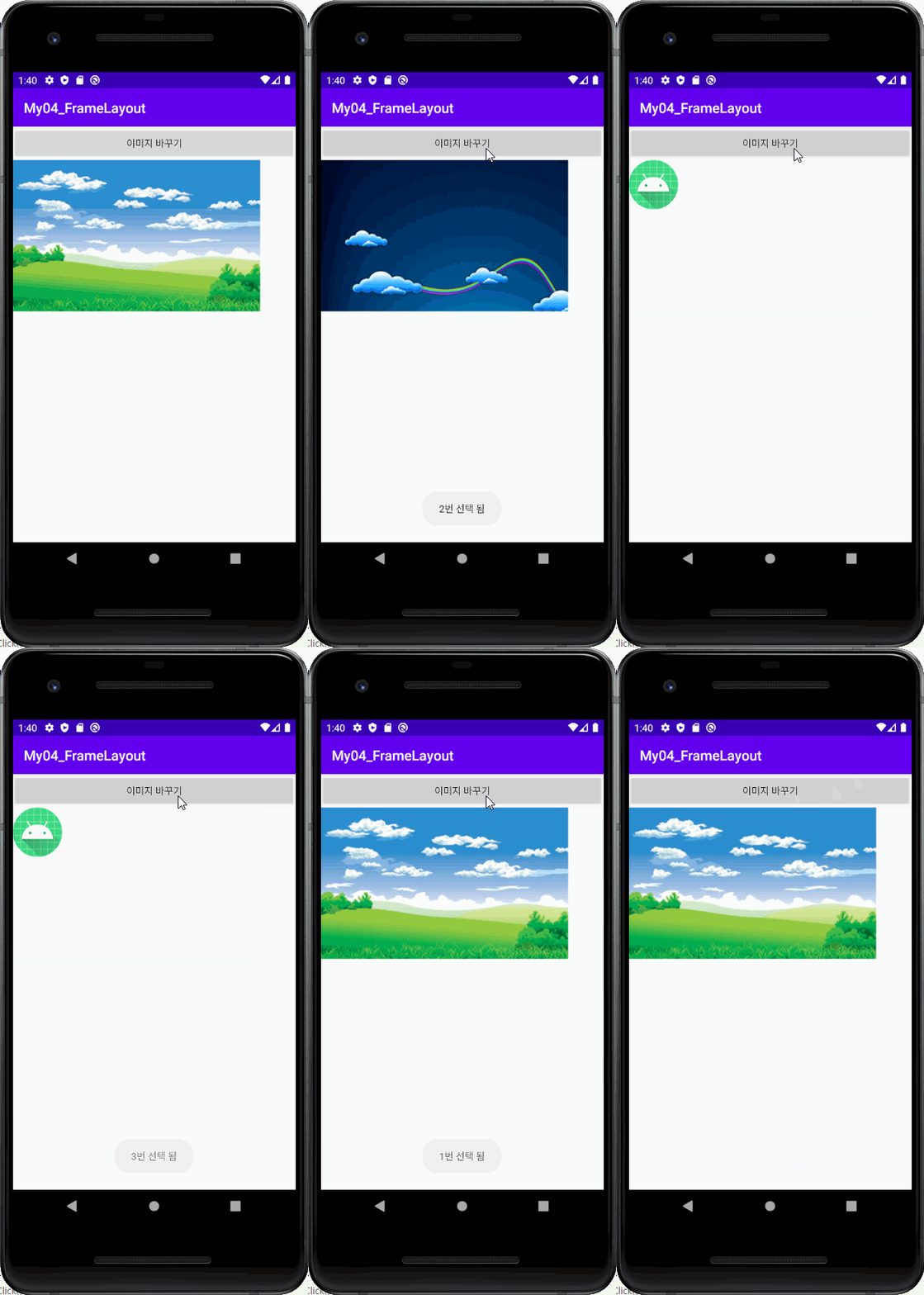

● activity_main.xml
<?xml version="1.0" encoding="utf-8"?>
<LinearLayout
    xmlns:android="http://schemas.android.com/apk/res/android"
    android:layout_width="match_parent"
    android:layout_height="match_parent"
    android:orientation="vertical">
    <Button
        android:id="@+id/btnChange"
        android:layout_width="match_parent"
        android:layout_height="wrap_content"
        android:text="이미지 바꾸기"/>

    <FrameLayout
        android:layout_width="match_parent"
        android:layout_height="match_parent">

        <ImageView
            android:id="@+id/imageView1"
            android:layout_width="match_parent"
            android:layout_height="wrap_content"
            android:src="@drawable/dream01"
            android:visibility="visible" />

        <ImageView
            android:id="@+id/imageView2"
            android:layout_width="match_parent"
            android:layout_height="wrap_content"
            android:src="@drawable/dream02"
            android:visibility="gone"/>

        <ImageView
            android:id="@+id/imageView3"
            android:layout_width="match_parent"
            android:layout_height="wrap_content"
            android:src="@drawable/dream03"
            android:scaleType="centerCrop"
            android:visibility="gone"/>
    </FrameLayout>
</LinearLayout>
- FramLayout : 여러 개체를 중첩시킬 수 있는 특징을 가진 레이아웃이다.
- visibility : 요소를 어떻게 보이게 할 것인지 설정하는 옵션
- invisible : 요소가 차지하는 공간은 있지만 보이지는 않음
- gone : 요소가 차지하는 공간도 없고 보이지도 않음
- scaleType : 이미지 뷰 안에서 이미지의 배치를 설정하는 옵션
● MainActivity.java
package com.example.my04_framelayout;

import androidx.appcompat.app.AppCompatActivity;

import android.os.Bundle;
import android.view.View;
import android.widget.Button;
import android.widget.ImageView;

public class MainActivity extends AppCompatActivity {

    Button btnChange;
    ImageView imageView1, imageView2, imageView3;
    int imgIdx = 2;

    @Override
    protected void onCreate(Bundle savedInstanceState) {
        super.onCreate(savedInstanceState);
        setContentView(R.layout.activity_main);

        btnChange = findViewById(R.id.btnChange);
        imageView1 = findViewById(R.id.imageView1);
        imageView2 = findViewById(R.id.imageView2);
        imageView3 = findViewById(R.id.imageView3);

        //이미지 뷰의 초기화
        imageView1.setVisibility(View.VISIBLE);
        imageView2.setVisibility(View.GONE);
        imageView3.setVisibility(View.GONE);

        btnChange.setOnClickListener(new View.OnClickListener() {
            @Override
            public void onClick(View view) {
                if (imgIdx == 1) {
                    imageView1.setVisibility(View.VISIBLE);
                    imageView2.setVisibility(View.GONE);
                    imageView3.setVisibility(View.GONE);
                    imgIdx = 2;
                } else if (imgIdx == 2) {
                    imageView1.setVisibility(View.GONE);
                    imageView2.setVisibility(View.VISIBLE);
                    imageView3.setVisibility(View.GONE);
                    imgIdx = 3;
                } else if (imgIdx == 3) {
                    imageView1.setVisibility(View.GONE);
                    imageView2.setVisibility(View.GONE);
                    imageView3.setVisibility(View.VISIBLE);
                    imgIdx = 1;
                }
            }//onClick()
        });//btnChange.setOnClickListener

    }//onCreate()
}//class
- setVisibility() 메서드로 요소의 visibility 속성을 변경할 수 있다.